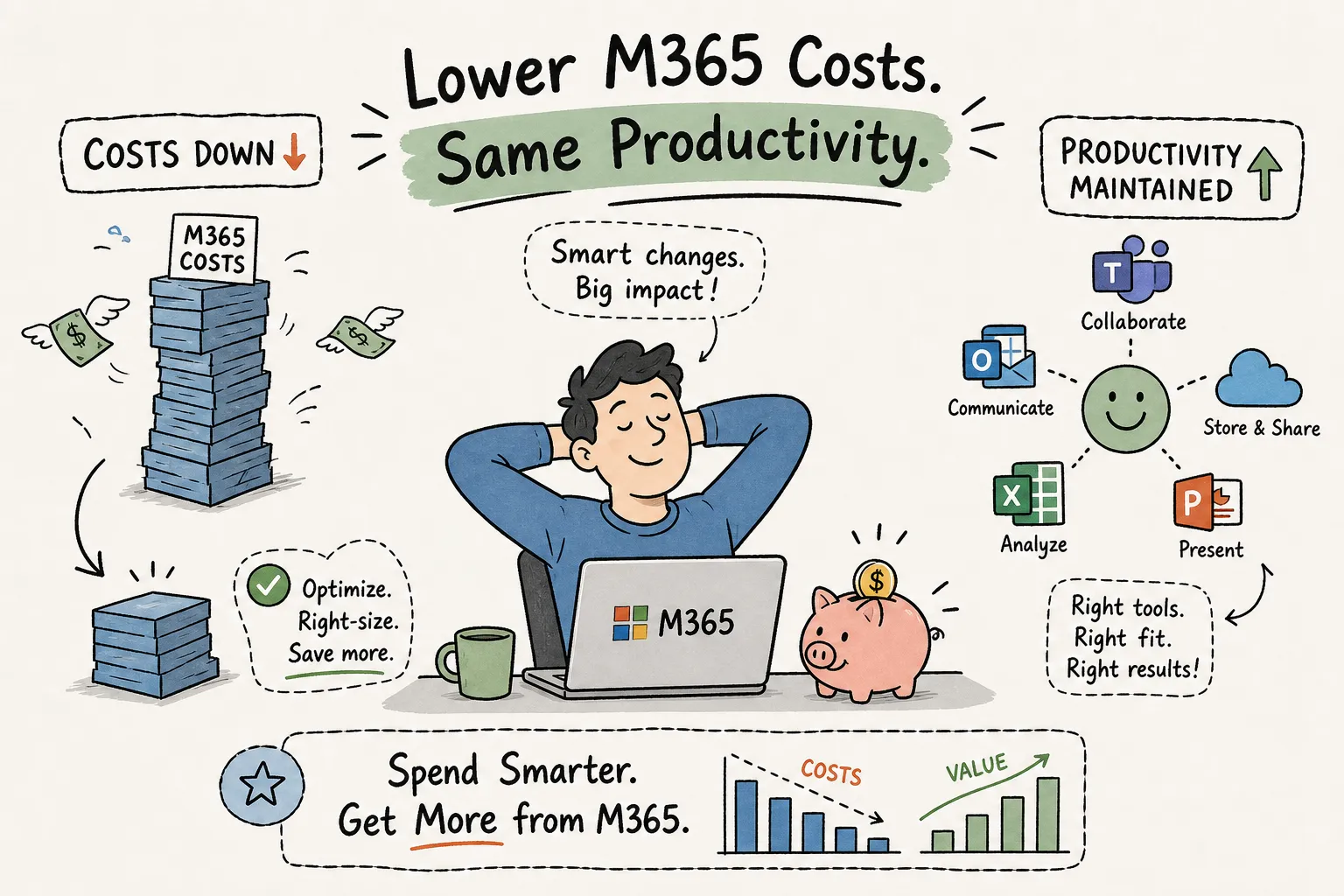
To reduce M365 costs effectively, you first need to see where the money is actually going, and that’s harder than it sounds. Roughly 32% of what organizations pay for Microsoft 365 disappears through waste they can’t see: inactive accounts still drawing full enterprise licenses, SharePoint storage expanding without governance, and E5 seats assigned to users who only send email. This quiet drain inflates your Microsoft bill year after year. The problem isn’t that IT teams don’t care. The problem is that Microsoft’s native admin center only surfaces sign-in data, not feature-level usage, and that gap is where budget silently leaks.
This guide covers 13 practical, proven tactics for Microsoft 365 cost optimization in 2026, organized by impact area so you can prioritize what to fix first and estimate your savings before you change a single setting. Everything here is grounded in 2026 list prices and real-world audit data, not vendor estimates or gut feel.
1. Run a real usage audit before you reclaim anything
Why native admin reports leave most waste invisible
The Microsoft 365 admin center shows who signed in, not which features they actually use. A user who logs in once a month to check email still counts as “active,” even when they’re sitting on an E5 license packed with Defender, Purview, and advanced compliance tools they’ve never opened. That distinction between sign-in activity and feature-level usage is exactly where the budget leaks, and native reports won’t flag it automatically.
What a complete usage picture actually looks like
A proper audit maps every user to every assigned SKU and cross-references feature-level usage signals across Exchange, Teams, SharePoint, OneDrive, Copilot, and compliance workloads. It surfaces disabled-but-licensed accounts, users who never activated desktop apps on a Business Standard plan, and shared mailboxes carrying full E3 licenses. Without this level of granularity, any “optimization” is just guesswork dressed up as a plan.
How Chronom AI closes the discovery gap in 48 hours
Chronom AI connects to your tenant via a read-only Microsoft Graph API scan and delivers a per-user, per-SKU savings report with exact annualized dollar figures within 48 hours. No manual cross-referencing, no PowerShell marathons, finance gets board-ready numbers and IT gets a prioritized action list. That report becomes the foundation for every tactic below, because all remaining steps are most effective when they’re grounded in real data, not estimates.
2. Reclaim licenses tied to inactive and ghost accounts
Defining “inactive” in 2026: the 90-day benchmark
Microsoft’s own guidance treats 90 days of no meaningful activity across workloads as the standard inactivity threshold, though your organization may want to set it stricter. Departed employees, contract workers whose projects ended, test accounts, and shared mailboxes carrying full user licenses all qualify as reclamation candidates. Any account that hasn’t touched Exchange, Teams, or SharePoint in 90 days deserves a review.
How to reduce M365 costs through license reclamation: the dollar math
At 2026 list prices, a single E3 seat costs $39 per month. If 50 users in a 500-seat tenant are genuinely inactive, reclaiming those licenses recovers $23,400 per year before any contract discount is applied. At E5 pricing ($60 per month), the same 50 seats represent $36,000 in annual savings. Across a mid-market or enterprise environment, license reclamation is consistently the single largest cost-reduction lever available.
How to validate before you pull the trigger
Never remove a license without confirming account status with the user’s manager or HR system. Cross-referencing against your offboarding workflow and Active Directory prevents disruption and avoids compliance gaps. Accounts that need to stay licensed for legal hold should be flagged separately and evaluated for downgrade rather than removal.
3. Reduce M365 costs by right-sizing your SKU mix before renewal
The E5-to-E3 downgrade: $252 per user per year
The price gap between M365 E5 ($60 per month) and M365 E3 ($39 per month) is $21 per user per month. Any user who doesn’t actively use E5-exclusive features, specifically advanced Defender, Purview compliance tools, Power BI Pro, and audio conferencing, belongs on E3. Downgrading 100 such users saves $25,200 annually at list price, and the feature delta won’t affect their day-to-day work at all.
Catching over-provisioned Business tier users
On the SMB side, the spread between Business Standard ($14 per month) and Business Basic ($7 per month) is $7 per user per month. Users who work entirely in web and mobile apps have no need for desktop Office installs, which is the primary differentiator of the Standard plan. Identifying 75 users in that category saves $6,300 per year with zero productivity impact.
The Copilot seat problem most teams overlook
Microsoft 365 Copilot carries a $30-per-user monthly add-on fee. In most deployments, only 20% to 30% of assigned Copilot seats see meaningful weekly usage after the initial rollout excitement fades. Usage data showing which users have generated fewer than a threshold number of Copilot interactions in 90 days gives finance a defensible, data-backed case to reduce the seat count before the next renewal cycle. This is often the fastest path to recovering five figures in annual spend.
4. Cut SharePoint and Exchange storage costs with targeted changes
Version history: the highest-yield, lowest-risk lever
SharePoint’s default version history settings allow unlimited retained versions per file. In active environments with frequent co-authoring and autosave, this creates enormous storage bloat. Consider a library of 250 files averaging 150 versions each: that single library can consume 37.5 GB of tenant storage on its own. Setting version limits going forward prevents new accumulation, but purging existing older versions on large document libraries is consistently the fastest and largest SharePoint storage win most organizations can make. In documented tenant audits, version-history cleanup has produced storage footprint reductions between 50% and 96%.
Archiving inactive sites at 75% lower cost
Microsoft 365 Archive tiers inactive SharePoint sites at approximately $0.05 per GB per month, compared with $0.20 per GB per month for active storage. Sites that haven’t had meaningful activity in six months or more are strong candidates for archiving. The content remains accessible and searchable; it simply costs far less to retain. For organizations carrying hundreds of gigabytes in dormant project sites, the annual saving on storage overage charges alone is material.
Exchange retention and inactive mailbox management
For Exchange, the primary cost levers are retention policy tuning and inactive mailbox licensing. A departed employee’s mailbox retained purely for litigation hold doesn’t need a full E3 or E5 license. Microsoft’s inactive mailbox feature preserves the content for compliance purposes under an Exchange Online Archiving license, which costs a fraction of a full enterprise SKU. Reviewing this systematically across all offboarded users is a reliable, low-disruption way to optimize Microsoft 365 billing and cut recurring monthly spend.
5. Use your audit data to negotiate a better EA or CSP deal
What vendors quote vs. what the data says
Microsoft’s standard renewal conversation starts from the vendor’s view of your usage, typically built on peak seat counts and total assigned licenses, not actual activity-weighted consumption. When you arrive at that conversation with a per-user, per-SKU savings report showing exactly which licenses are underutilized and by how much, the negotiating position shifts entirely. You’re no longer accepting the vendor’s framing of what you “need.”
Timing your renewal around a fresh audit
The ideal sequence is to run a full tenant audit 60 to 90 days before your Enterprise Agreement or CSP renewal date. That window gives you time to validate findings, secure internal approvals, and build a documented business case with annualized savings figures. Negotiating on gut feel or admin-center summaries leaves money on the table; negotiating with a board-ready savings report creates real leverage for SKU removals, volume discounts, and revised seat counts.
Turning findings into contract changes
A thorough audit should directly map to concrete contract changes. Removing licenses with no active users and downgrading SKUs where feature usage doesn’t justify the higher tier are the two highest-impact actions. You should also challenge add-on seats where adoption metrics don’t support the current count. Each finding should carry a named user, assigned SKU, and exact dollar figure. That specificity is what turns a vague conversation about overpaying into a line-item reduction your vendor can’t easily dismiss.
6. Build a system that prevents waste from quietly rebuilding
Why a one-time audit is only half the solution
License drift is a continuous process. Every new hire, role change, internal transfer, or project team addition is a potential over-provisioning event. Without a monitoring layer, the savings from a thorough initial cleanup rebuild within 12 to 18 months. Organizations that reduce Microsoft 365 spending once but don’t maintain governance end up back at the same conversation at the next renewal, often with higher seat counts than when they started.
Continuous monitoring and anomaly detection
Effective license lifecycle governance relies on automated alerts that catch problems before they compound. When a new high-tier license is assigned to an account that doesn’t match usage patterns for that SKU, your team should know immediately. The same applies when Copilot seats go 60 days without activation or when SharePoint storage spikes unexpectedly. Chronom AI’s monitoring layer watches for exactly these signals, letting IT and finance intervene before waste rebuilds rather than discovering the damage at the next annual audit cycle.
Setting thresholds that trigger a review automatically
A practical governance model sets inactivity thresholds, such as 90 days of no workload activity, that automatically flag accounts for a lightweight manager review. When that review confirms the account is still active and legitimate, the license stays. When it confirms a departure or role change, the license enters a reclamation queue. This automated cadence is what keeps the initial savings realized rather than quietly eroded by the normal churn of organizational life.
Reduce M365 costs for good: start with data, sustain with discipline
Cutting Microsoft 365 costs in 2026 isn’t a single cleanup project. It’s a discipline that starts with accurate, feature-level usage data and flows through a series of concrete decisions. Reclaiming inactive licenses and aligning SKUs to actual usage tend to deliver the largest immediate returns. Archiving cold storage and negotiating renewals with defensible numbers in hand compound those gains over time. Each tactic in this guide is most effective when it’s grounded in real data, not admin-center estimates or vendor-supplied reports.
The organizations that sustain the largest savings replace guesswork with a continuous, automated view of what’s actually being used and what’s quietly burning budget. If you’re managing 200 or more seats or spending $50,000 or more annually on Microsoft licensing, Chronom AI’s free, read-only audit delivers a per-user savings report in 48 hours. Start your free audit today, no credit card required, and get the data you need to make every cost decision on this list count.