The average mid-to-large organization wastes roughly 25, 40% of its Microsoft 365 budget every year. Not because anyone made a bad decision, but because license sprawl is invisible without the right tooling. Native admin center reports show who signed in, not who actually used anything. Manually auditing thousands of users across dozens of SKUs takes weeks and still misses storage bleed and Copilot seat waste sitting quietly on the books.
This Chronom AI review is a first-hand breakdown of the Microsoft 365 cost optimization platform we built after years of watching finance and IT teams fight this exact problem with spreadsheets and gut feel. This isn’t an arms-length assessment. It’s an honest look at what the platform does, how it works, what the output actually shows, and where it makes sense, and where it doesn’t.
Chronom AI review: What the platform actually does
Scanning across the full Microsoft cost surface
Chronom connects to a Microsoft 365 tenant via a read-only Microsoft Graph API integration and scans across four domains where spend quietly leaks: M365 licensing, SharePoint and OneDrive storage, Copilot and metered AI seats, and Azure consumption plus Marketplace commitments. The platform checks against 200+ waste patterns in a single pass, from inactive user accounts holding full E3 or E5 licenses to overlapping SKUs where features are being paid for twice. Every finding is tied to a named user or resource, not a vague percentage.
Feature-level usage vs. what you’re actually paying for
This is the core difference between Chronom and a sign-in report. Microsoft’s native tools tell you a user authenticated last month. Chronom reads interaction telemetry across individual M365 services and flags users who hold premium licenses but have never touched Teams Phone, Defender, or Copilot. E5 list pricing currently runs approximately $57 per user per month, verify current pricing at Microsoft’s licensing page, as rates change. Using that figure as an example: 200 users who have never touched E5-exclusive features represent roughly $136,800 in annual overpay, and your admin center won’t surface that on its own.
How the read-only Microsoft Graph API connection works
App registration, permissions, and the zero-write guarantee
Connecting Chronom requires creating a standard Azure App Registration in your tenant. You grant read-only Graph API permissions, User.Read.All and AuditLog.Read.All, consistent with standard reporting use cases. After admin consent is granted, you connect the tenant through Chronom’s Settings panel. For an experienced admin, the process typically takes under 30 minutes, though actual time varies with tenant complexity. Chronom’s integration is architected as read-only, which means it is designed to be structurally unable to change, delete, or modify anything in your tenant, verify the exact permission list presented during app registration before consenting. No change happens until your team explicitly approves it.
SOC 2 compliance and what Chronom never touches
Chronom states that it is SOC 2 compliant and operates under a zero-change-until-approved architecture. The platform reads usage metadata and configuration signals. It does not access email content, document contents, or Copilot prompt text. For IT and security teams evaluating vendor risk, this is the key assurance: the attack surface is equivalent to connecting a read-only reporting tool, not a management agent with admin rights.
The initial free audit requires no credit card, which removes the procurement friction that often blocks teams who need to show a business case before getting budget approval.
Chronom AI review: The 48-hour savings report
Per-user, per-SKU findings with exact dollar figures
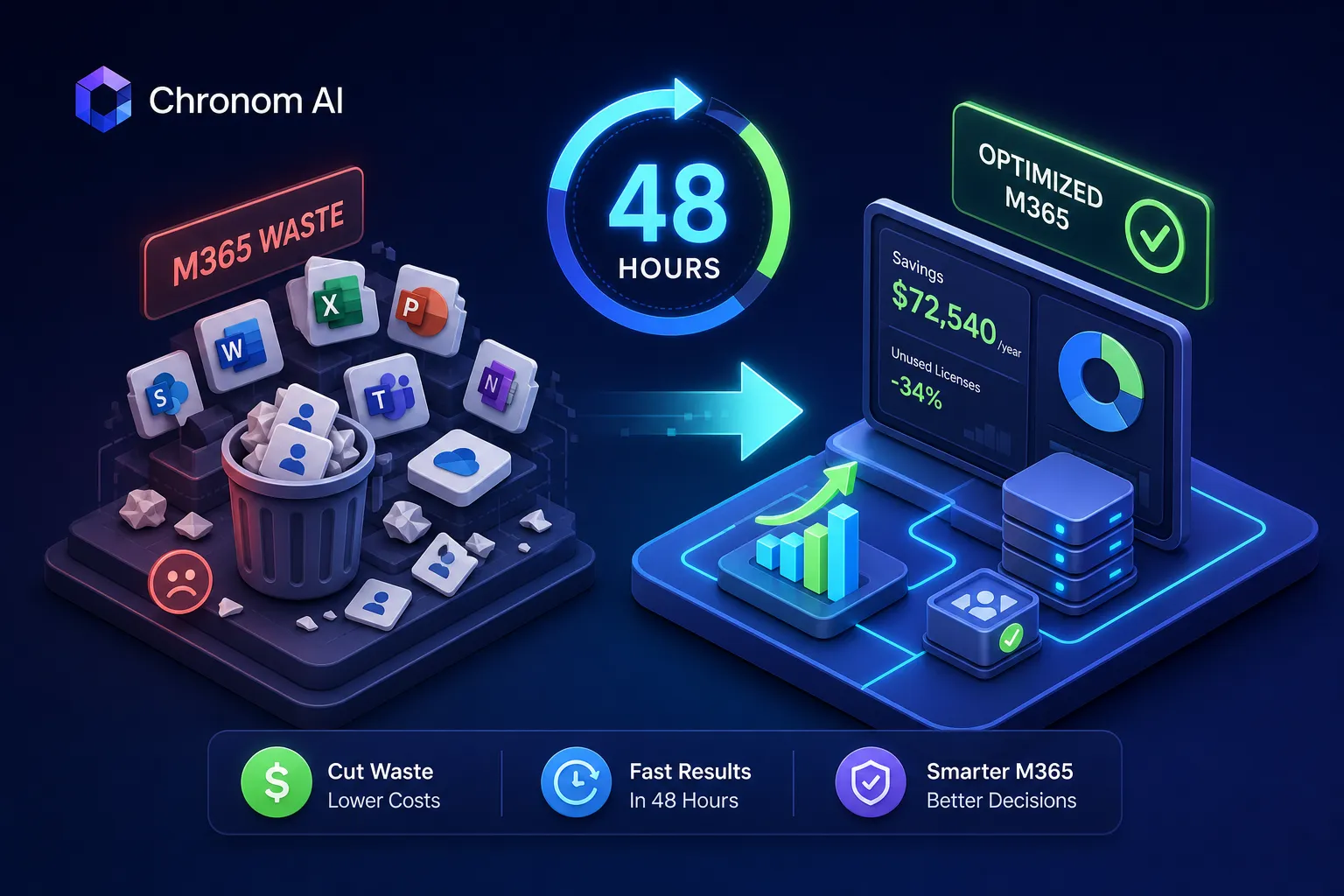
Within 48 hours of connecting a tenant, Chronom delivers a savings report structured around named findings rather than aggregate estimates. A typical report identifies wasted users by name, lists the exact SKU they hold, shows the last meaningful interaction date across each M365 service, and attaches the annualized dollar cost of keeping that assignment unchanged.
Sample finding: “User: Jane Smith | License: E5 ($684/year) | Zero Defender, Teams Phone, or Copilot usage in 180 days | Recommended action: Downgrade to E3 | Projected savings: $348/year.”
Multiply that across hundreds of users and the report builds into a defensible dollar figure ready for a CFO or EA renewal negotiation.
From raw findings to board-ready output
The report is organized into priority actions ranked by ROI impact, with total identified waste and projected annual savings summarized at the top. For teams that want to act on findings immediately, Chronom provides remediation assets: ready-to-run PowerShell scripts, exportable data, and technical execution guides. For teams that lack the internal bandwidth to execute, Chronom’s optional managed cleanup service converts approved findings into realized savings without pulling IT off other work. That combination of fast report turnaround and execution support is what separates this from a traditional license audit that ends with a spreadsheet and a to-do list no one has time to action.
Chronom vs. native Microsoft tools and manual license audits
What the Microsoft admin center doesn’t show you
The Microsoft 365 admin center and its usage analytics dashboard are useful for high-level adoption tracking, but they are built for adoption visibility, not cost optimization. They show sign-in events and broad service adoption rates at the tenant level. They don’t cross-reference which specific E5 features a user has actually interacted with, flag inactive users holding premium SKUs, or surface SharePoint sites consuming quota that hasn’t been touched in two years. Getting that level of detail natively requires stitching together data from multiple admin portals, exporting CSVs, and building your own analysis logic, which is essentially building a lightweight version of Chronom by hand.
Why spreadsheet-based audits don’t scale past 200 seats
Manual license audits work at small scale. An IT admin can cross-reference a few dozen users in a spreadsheet and make reasonable calls. At 500, 1,000, or 5,000 seats across multiple SKUs and service plans, a manual audit becomes a multi-week project with a high error rate and no ongoing monitoring. Across Chronom’s client base, E3 underutilization typically runs 15% to 35% and E5 underutilization runs 20% to 40%, which means the savings opportunity is real and persistent. Chronom’s continuous monitoring capability addresses the “audit decay” problem: it monitors for new license drift between renewal cycles so waste doesn’t quietly rebuild after the initial cleanup.
Pricing, ROI, and who Chronom is built for
Pricing model and the 3x minimum return commitment
Chronom uses a custom enterprise pricing model scoped around the size of your Microsoft spend and seat count rather than a fixed per-user SaaS tier. A publicly available AWS Marketplace listing shows the Business package at $18,000 per year; for larger enterprise deployments, pricing is quoted based on engagement scope. Chronom commits to a minimum 3x ROI on every engagement, at least $3 in identified savings per $1 paid. The current client average is 3.8x, which means most customers recover the platform cost well within the first year from savings alone.
The right customer profile
Chronom is designed for organizations with 200 or more Microsoft 365 seats or $50,000 or more in annual Microsoft spend. Below that threshold, the savings opportunity usually doesn’t justify the investment. Above it, especially at 500+ seats with a mix of E3, E5, Copilot, and Azure commitments, the platform pays for itself from the first report. The clearest buyer signals are:
- An EA or CSP renewal coming up in the next six months
- A CFO asking for cost reduction data with specific dollar figures attached
- An IT team that suspects license sprawl but doesn’t have the tooling to quantify it
Honest pros, cons, and the final verdict
Where Chronom delivers the most value
The platform’s strongest advantages are speed, specificity, and security posture. A 48-hour turnaround from connection to board-ready savings report is genuinely faster than any manual process, which typically runs one to two full working days for 500 seats and weeks for larger environments. The per-user, per-SKU specificity makes findings immediately actionable rather than requiring additional analysis to interpret. The read-only, SOC 2 compliant architecture removes the security objection that kills many optimization tool evaluations before they start. For finance leaders approaching an EA renewal, having vendor-agnostic, dollar-level data that wasn’t generated by Microsoft is strategically valuable in ways that go beyond the immediate savings figure.
Where broader SaaS management platforms make more sense
Chronom is purpose-built for Microsoft cost optimization. If your primary need is managing SaaS sprawl across 50 different applications, automating employee onboarding and offboarding across your entire app stack, or governing a mixed Microsoft and Google Workspace environment, a broader SaaS management platform covers more ground. Those tools trade Microsoft-specific depth for breadth across your full SaaS estate. For organizations where Microsoft represents the dominant portion of their software budget, Chronom’s focused approach delivers faster and more specific results than a generalist platform can. If cross-platform SaaS governance is the priority, weigh that scope against what you’d gain from Microsoft-specific depth.
The bottom line
The core problem Chronom AI is built to solve is straightforward: organizations are paying for Microsoft licenses, storage, and AI seats that their users aren’t actually using, and they have no reliable, fast way to see exactly where that money is going. This Chronom AI review has covered how the read-only Graph API scan, the 48-hour savings report with per-user precision, and the optional managed execution service all work together to move an organization from “we suspect we’re overpaying” to “here’s the exact dollar amount and here’s the fix” within days.
If you manage 200 or more Microsoft 365 seats and haven’t run a feature-level usage audit in the past year, the free audit is the lowest-friction entry point available. No credit card is required, the integration is read-only, and you get a report in 48 hours showing exactly what your Microsoft spend is actually buying, and what it isn’t.
Frequently asked questions about Chronom AI
How long does the Chronom AI setup actually take?
For most experienced admins, the Azure App Registration and tenant connection takes under 30 minutes. Actual time depends on your tenant complexity and internal approval workflows for admin consent.
Does Chronom AI work with both E3 and E5 licensing?
Yes. Chronom’s Chronom.ai features are designed to analyze usage across all major M365 SKUs, including E1, E3, E5, Frontline, and Copilot seats, surfacing downgrade and reassignment opportunities across each tier.
How does Chronom AI compare to a FinOps platform?
A Chronom FinOps platform approach differs from generalist cloud cost tools in that it goes deeper on Microsoft-specific signals, feature-level telemetry, SharePoint storage, and Copilot seat usage, rather than treating M365 as a single line item. The result is more granular findings specific to Microsoft spend rather than broad cloud cost summaries.
Is there a Chronom AI free trial?
Chronom offers a free 48-hour audit with no credit card required. This initial audit covers your tenant’s waste patterns and delivers a savings report before any purchase decision is made.