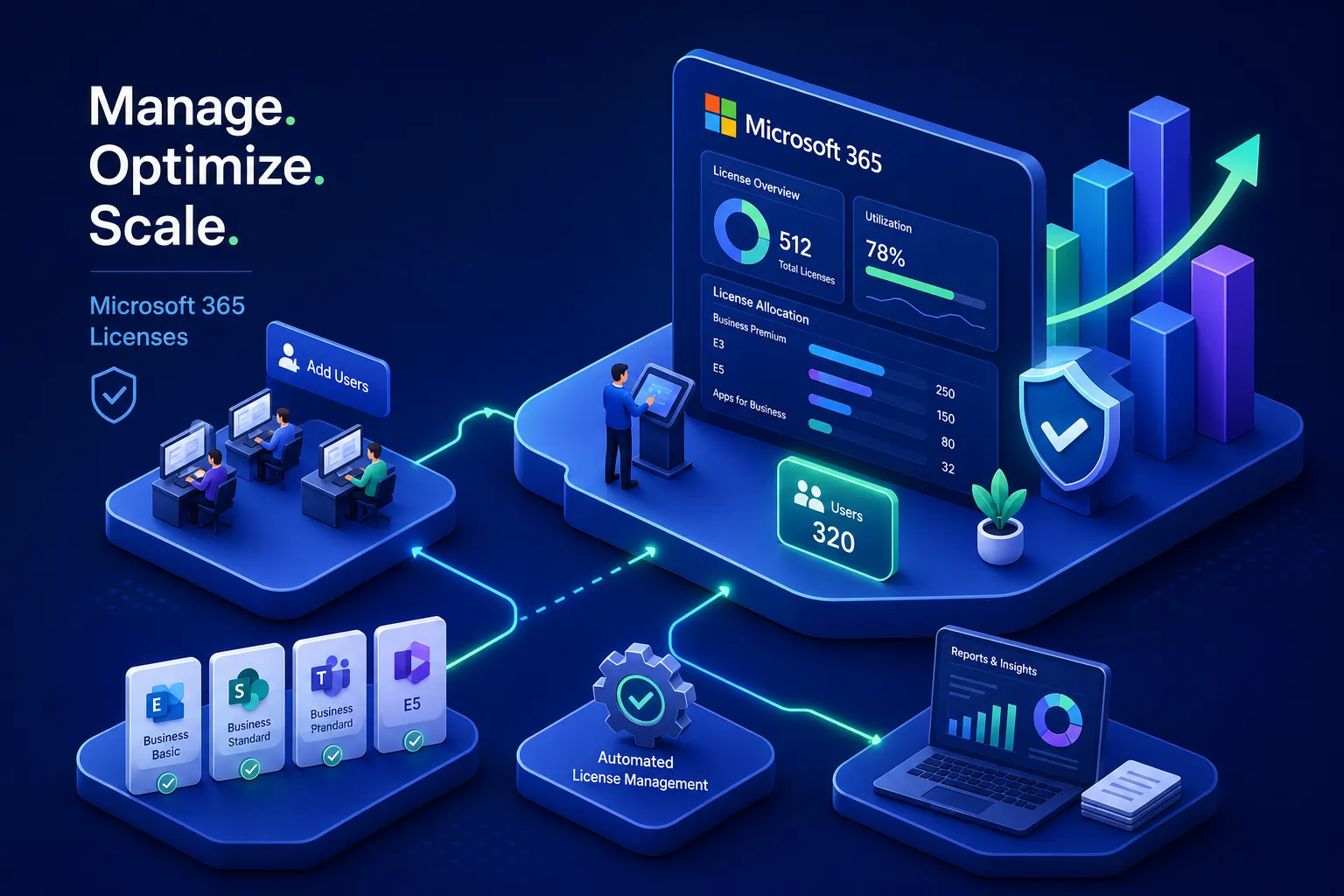
How should a growing company manage Microsoft 365 licensing to avoid overspending? The answer starts with understanding why the problem exists in the first place. Growing companies almost always buy M365 licenses in batches, and those batches age poorly. The moment headcount shifts, whether through a new hire wave, a round of layoffs, or a department restructure, the license count and actual seat usage diverge fast. Industry benchmarks from CoreView’s 2025 M365 License Waste Report put the problem in sharp relief: 56% of M365 licenses across the average organization are inactive, underutilized, oversized, or unassigned. For a 300-person company running E3 at $39 per user per month, even a conservative 20% waste rate translates to more than $28,000 in avoidable annual spend.
The good news is that this problem follows a predictable pattern, which means it responds to a structured fix. The framework comes down to four stages: audit your current state, right-size your SKU mix against actual role needs, automate monitoring so waste doesn’t compound between reviews, and govern the provisioning process so sprawl can’t restart. Chronom AI is purpose-built to surface this waste automatically across the full Microsoft stack, cutting the time from “we suspect we’re overpaying” to a specific dollar figure with a clear remediation path.
With Microsoft’s July 2026 pricing increases pushing Business Basic up 17% and E3 up 8%, the cost of inaction just got measurably higher. The rest of this article walks through each stage of the framework in practical terms.
Why growing companies keep overpaying for Microsoft 365
The batch-buying trap that compounds over time
Procurement works in a predictable way: IT buys licenses in blocks of 25 or 50 to stay ahead of hiring. Staying ahead is sound logic in theory, but in practice it quickly becomes paying for seats no one is using. The CoreView finding that 56% of licenses are inactive, underutilized, oversized, or unassigned isn’t an outlier. It’s a direct consequence of buying licenses in batches without aligning them to actual employee workflows.
The deeper problem is that batch purchases don’t automatically self-correct. When a hiring plan slips or a reorg eliminates a team, the invoice doesn’t shrink. Those extra seats carry forward quietly into the next billing cycle and the one after that, until someone runs a deliberate audit.
How headcount events accelerate waste
Two scenarios illustrate how quickly waste compounds. In the first, 40 E3 licenses get provisioned in Q1 ahead of a hiring surge, but onboarding delays mean 15 of those accounts never activate. In the second, 30 employees are terminated during a difficult week of layoffs, but IT misses the license removal step in the chaos of offboarding. Both scenarios produce the same outcome: active billing for inactive seats.
These ghost licenses typically go undetected for months, sometimes over a year. Unassigning a license doesn’t reduce the Microsoft bill because charges are based on purchased capacity, not active use. A single forgotten E5 license quietly drains $720 per year before anyone notices. Multiply that across a chaotic offboarding week, and the dollar figure compounds fast.
How should a growing company manage Microsoft 365 licensing: match tiers to actual role needs
Most organizations default to a single SKU across all departments because it’s simpler to manage. The problem with that default becomes obvious once you run the math: at $39 per user per month for E3 versus $14 for Business Standard, assigning the higher tier to knowledge workers who only use Teams, Outlook, and SharePoint is a direct, avoidable overspend.
The practical tier logic breaks down like this: Business Basic at $7 for browser-only users; Business Standard at $14 for full desktop app users; Business Premium at $22 when you need Entra ID P1 and advanced security without crossing into the Enterprise family. Keep in mind that Business plans are capped at 300 seats, beyond that, E-family licensing applies.
When E5 is justified and when it’s wasted money
E5 at $60 per user is defensible only for roles that actively consume its security stack: Defender for Office 365 Plan 2, Entra ID P2, and Power BI Pro. For most knowledge workers, those capabilities sit unused, and the right call is E3 with targeted add-ons. A practical mental model: if a user can’t name a feature that justifies the $21 per month gap between E3 and E5, the license is oversized.
A role-based license matrix that maps job functions to SKU requirements is the foundation for making this decision consistently. Without that matrix, right-sizing is guesswork applied differently by every IT ticket that comes in. Build the matrix once, review it at each annual renewal, and the default-to-E3 habit breaks across departments.
Run a license audit without disrupting your team
A structured audit moves through two layers: disabled accounts first (zero disruption, no approvals needed), then inactive users who require a manager sign-off before reclamation. Here’s how to work through both.
Start with the fastest, lowest-risk wins
Disabled accounts that still hold active licenses are the cleanest money to recover. A user whose account is disabled in Azure AD but whose license was never removed costs $14 to $60 per month for zero benefit. These reclaims require no manager approval and cause zero service disruption. You can surface them in the Microsoft 365 Admin Center by filtering for disabled accounts in the Users view, or via PowerShell using Get-MgSubscribedSku to compare prepaidUnits.enabled against consumedUnits. Any gap between those two numbers is unassigned waste you can reclaim immediately.
How to handle inactive users without creating friction
Inactive users require one additional step: a manager confirmation before the license is pulled. A 90-day inactivity window catches genuine waste while avoiding the mistake of reclaiming access from someone on extended or parental leave. This distinction matters for user trust and for IT credibility with leadership.
Document every reclaim thoroughly: who approved it, when the license was removed, what SKU was returned, and where the savings land in the budget. That paper trail protects IT during Microsoft audits and gives finance leadership a concrete ROI figure rather than a rough estimate. Mid-market companies that run a structured audit typically recover 8% to 15% of their paid seats in the first cycle; that number climbs to 13% to 25% when SKU downgrades are included alongside straight reclamation.
The auto-renewal trap during hiring surges and layoffs
How Enterprise Agreement true-ups punish inaction
Enterprise Agreements include an annual true-up where Microsoft reconciles your peak seat count against what you contracted. The critical word is “peak.” If your company hired aggressively in Q2 and provisioned 80 extra E3 seats, those seats are baked into the true-up calculation even if 30 of those employees were later let go. There is no down-true mechanism mid-term: headcount reductions don’t lower the current bill; they only lower the baseline for the next renewal. IT teams that skip mid-cycle reviews arrive at the anniversary date with inflated numbers and no leverage.
Pre-true-up reclamation is the practical counter to this trap. Audit and remove unused licenses before the anniversary date. That timing difference can eliminate thousands of dollars in seat charges from the renewal calculation before Microsoft ever sees the number.
Build a 90-day renewal review into your contract calendar
A 90-day lead time before any M365 contract renewal or true-up gives IT enough runway to pull usage data, identify over-provisioned SKUs, and enter the renewal conversation with facts rather than guesses. On the procurement side, this means centralizing approval for all new M365 seat requests, setting a clear threshold before self-service provisioning is allowed, and assigning a named business owner to every license pool who can justify the seat count at renewal time.
Without that ownership structure, no one is accountable when the count creeps up between reviews. The 90-day review cadence turns license management from a reactive scramble into a scheduled, documented process that finance leaders can see and audit.
Automate license monitoring so waste can’t compound
Why quarterly audits aren’t enough for a scaling org
A company adding 10 to 20 people per month doesn’t have the bandwidth to run manual license reviews every 90 days and catch every offboarding slip, role change, or department restructure in between. Manual audits are snapshots; license waste is continuous. By the time the next scheduled review arrives, a month or two of unreclaimed seats have already been invoiced. The gap between audit cycles is where most of the money leaks.
Continuous monitoring as the permanent fix
Purpose-built tooling changes this equation entirely. Chronom AI monitors M365 license utilization continuously and flags over-provisioning in real time, so IT teams don’t have to wait for the next scheduled review to surface a reclamation opportunity. When a user account is disabled or crosses an inactivity threshold, the platform surfaces it immediately with a specific dollar-value impact, not a generic alert. For organizations managing 200 or more seats across multiple license tiers, that level of automated visibility is the difference between staying ahead of waste and chasing it retroactively after quarterly invoices have already landed.
Governance policies that scale with your headcount
Role-based provisioning as the foundation
The cleanest way to prevent license sprawl is to tie provisioning to job role rather than individual requests. Developers get the developer license profile; frontline workers get the frontline profile. License assignments update automatically when someone moves between departments, which removes the ad hoc decisions that accumulate into a SKU mishmash over time.
Azure AD group-based licensing is the native mechanism for this approach. Assign a security group to a license SKU, populate that group dynamically using department attributes in Entra ID, and the assignment follows the person rather than the IT ticket. The governance work is the policy layer on top: defining each role’s license profile, setting a review trigger for role changes, and auditing group membership quarterly to catch assignments that no longer reflect actual job functions.
Chargeback and showback: making departments own their spend
When IT absorbs the full Microsoft licensing bill centrally, no department has a financial reason to flag unused seats. Showback reports, which display what each department’s license pool costs without actually charging them, change the conversation. Full chargeback models, where licensing costs flow directly to departmental budgets, change behavior. Either model gives business unit owners a reason to care when their headcount drops but their seat count doesn’t.
The most effective implementation maps every named-user license to a department billing code via HR system data, then applies a phased rollout: showback first for three to six months to validate the data, then transition to chargeback once department heads trust the numbers. Pair this model with the 90-day renewal review and a centralized procurement gate, and the governance framework is complete.
Your action plan for getting this right
Sequencing the four stages matters, start where the risk is lowest and the payback is fastest. Begin by auditing disabled accounts and inactive users, because those reclaims require no approvals and carry no disruption risk. Then right-size your SKU mix against a role-based license matrix to eliminate the default-to-E3 habit across departments. Build a 90-day pre-renewal review into your contract calendar so every true-up conversation starts with clean data. Finally, layer in continuous automated monitoring to catch waste between review cycles before it compounds into another quarter of avoidable spend.
The July 2026 Microsoft pricing increases make the math on inaction steeper than it was twelve months ago. The payback period on a structured M365 cost optimization program has shortened, and the urgency of establishing a clean baseline has only increased.
FAQ: Managing Microsoft 365 Licensing Costs
How should a growing company manage Microsoft 365 licensing to avoid overspending?
Follow a four-stage framework: audit disabled accounts and inactive users to reclaim waste immediately, right-size SKUs using a role-based license matrix, schedule a 90-day pre-renewal review to enter true-up conversations with accurate data, and deploy continuous monitoring so waste doesn’t accumulate between manual reviews. Mid-market organizations that run this process systematically recover 8% to 25% of paid seat costs in the first cycle, and prevent that waste from recurring.
For organizations that want to move faster on this, Chronom AI’s free M365 audit delivers a dollar-quantified savings report from the first scan using read-only access, with no credit card required. If you’re managing 200 or more seats and haven’t reviewed your license utilization in the past six months, that audit is the most direct way to find out what you’re paying for seats that aren’t being used.