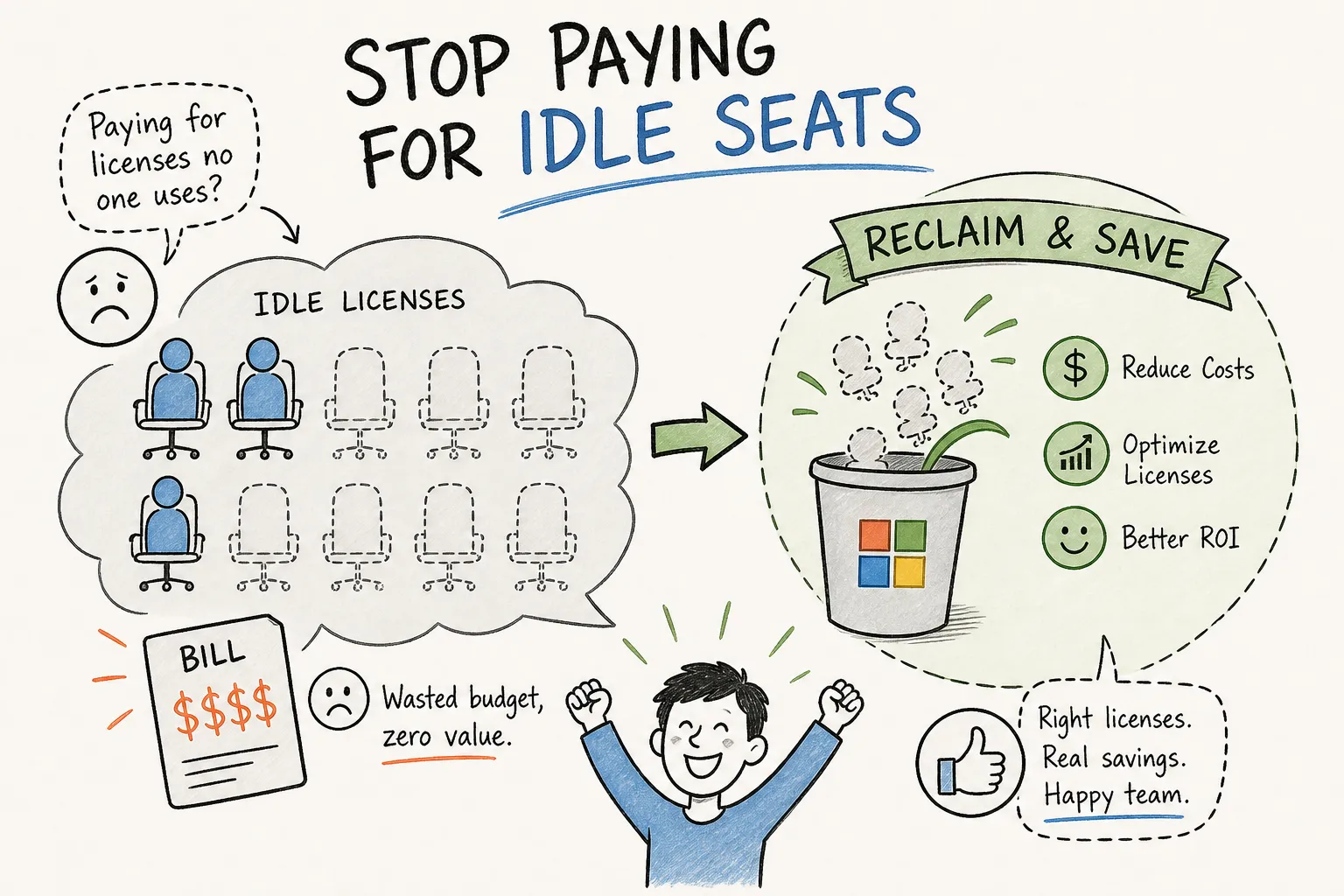
Microsoft license reclamation can stop enterprises from paying full price for licenses attached to users who haven’t opened a Microsoft 365 app in months. The bill renews automatically, headcount changes get processed through HR while IT scrambles to keep up. The gap between assigned seats and active users quietly widens. By the time finance asks why the M365 invoice went up again, the waste has already compounded for another cycle.
Industry research from CoreView’s 2025 Microsoft 365 License Waste Report puts the scale of this problem in sharp relief: up to 44% of Microsoft 365 licenses in enterprise organizations are underutilized, oversized, or inactive at any given time. That isn’t a rounding error. At enterprise prices, that’s a significant budget line sitting completely idle.
Microsoft license reclamation fixes this problem, but only when you treat it as a continuous discipline rather than a one-time cleanup sprint. Platforms like Chronom AI surface exactly who is wasting which SKU within 48 hours, giving teams named-user data to act on instead of guesswork. This article walks you through a clear audit method, the right inactivity thresholds, a step-by-step reclamation sequence, and a governance framework that keeps waste from rebuilding between renewals.
What Microsoft license reclamation actually means
Reclamation is the structured act of identifying assigned licenses that show no meaningful feature activity and returning them to the available pool for reassignment or cancellation. The key word is structured. Reclamation implies a documented, repeatable process with written policy behind it, not a one-off cleanup project someone does in a spreadsheet when the budget review comes around.
This matters because three related terms get used interchangeably, and they mean different things operationally. Deprovisioning refers to offboarding a user entirely, which is an HR-driven process. Cleanup is ad hoc, usually triggered by a complaint or an audit. Reclamation is the most governance-backed of the three: it has defined thresholds, documented exceptions, a notification process, and a repeatable execution cycle.
The financial logic is clear. Microsoft’s licensing model charges per assigned seat regardless of whether the user actually opens any application. An idle E5 seat costs exactly the same as an active one at $60 per user per month. That billing reality is what makes reclamation a budget-critical discipline rather than an optional hygiene exercise.
Why standard admin reports miss most of the waste
The Microsoft 365 admin center shows sign-in activity, not feature-level usage. A user who authenticated once to check email still appears “active” in the native dashboard, even if they haven’t touched Teams, SharePoint, Copilot, or any advanced E5 feature in six months. That’s a critical gap because the admin center’s definition of active and the billing definition of valuable are not the same thing.
Feature-level usage data, meaning which specific apps and plans a user is actually consuming and how frequently, requires Graph API queries against reporting endpoints or a dedicated optimization tool. The native admin center doesn’t surface this, which means manual license reviews built on admin center exports are structurally limited in what they can find.
Microsoft license reclamation: which license types to target first
Not every SKU carries the same reclamation value. Targeting expensive licenses first is how reclamation programs generate meaningful savings quickly, rather than spending energy on low-dollar seats while the high-cost waste continues unchecked.
E3 and E5 users who behave like lower-tier subscribers
E5 licenses at $60 per user per month represent the highest per-seat reclamation value in most tenants. An E5 user who never touches Defender for Endpoint, Microsoft Purview, or advanced compliance features is a clear downgrade candidate to E3. The gap between those two SKUs is $21 per user per month in 2026 list pricing, and at 50 users that’s more than $12,500 in annual savings from a single reclamation pass.
These are also the hardest candidates to find manually, because the user does sign in. Nothing in a standard admin center report flags them as a problem. Only feature-level usage analysis reveals that the $60 seat is delivering $39 worth of actual value.
Copilot and Power BI seats with zero adoption
Microsoft 365 Copilot at $30 per user per month has become one of the fastest-growing waste categories as organizations provisioned seats aggressively at launch. Microsoft’s own definition of a Copilot “active user” requires at least one intentional interaction: a submitted prompt or a deliberate engagement with a Copilot feature in a supported app. A user who opens the Copilot pane but never submits a prompt registers as zero interaction telemetry. That’s pure cost with no return.
Power BI Pro accumulates in a similar pattern. Broad rollouts rarely achieve full adoption, and licenses provisioned “just in case” sit idle for months while the invoice ticks forward. These SKUs are relatively easy to reclaim because zero usage is unambiguous: there’s no threshold judgment required, just a clear signal that nothing is happening.
Orphaned accounts and stale license assignments
Offboarding gaps are a consistent and underestimated source of license waste. Users who leave the organization but whose licenses aren’t reclaimed in the same offboarding cycle continue to carry a full monthly charge. Orphaned accounts and license recovery represent one of the highest-confidence reclamation opportunities available, because the justification is immediate and uncontested. Group-based license assignments compound this problem: removing a user account from Active Directory doesn’t automatically trigger a license removal or surface the cost in spend reports. The seat stays assigned, the charge continues, and no one notices until an audit.
How to surface reclamation candidates before you act
Acting on reclamation without reliable data creates false positives and disrupts legitimate low-frequency users: executives who travel frequently, seasonal staff, and legal hold accounts. The goal is a candidate list built on multi-signal confirmation, not a single data point that might reflect a service account or background sync.
Exporting license assignments and activity with Graph PowerShell
The two data streams you need are license assignment data and activity timestamps. Use Get-MgUser with the SignInActivity and AssignedLicenses properties to pull assigned SKUs alongside last interactive and non-interactive sign-in timestamps for every user in the tenant. Combine that with Get-MgSubscribedSku to map SkuId GUIDs to readable names like ENTERPRISEPREMIUM for E5 or POWER_BI_PRO for Power BI Pro.
One important limitation: Graph sign-in data reflects authentication events, not app-level feature usage. To get Exchange, SharePoint, and Teams activity timestamps in the same export, pull the Microsoft 365 active user detail report via Get-MgReportOffice365ActiveUserDetail and join it to your license data on user principal name. That combined export gives you one row per user with license SKU, last sign-in, and last workload-specific activity across Exchange, SharePoint, and Teams.
Choosing the right inactivity threshold for your organization
A tiered policy works better than a single cutoff. Flag users at 30 days of inactivity, treat them as formal reclamation candidates at 60 days, and trigger a mandatory reclamation review at 90 days. This gives your team time to confirm edge cases before acting and reduces the risk of reclaiming a legitimate low-frequency user.
Apply role-based exceptions to the policy. Contractors and temporary workers warrant shorter thresholds because their assignments are time-bounded anyway. Executives, seasonal employees, and legal hold accounts warrant longer windows because their usage patterns are legitimately irregular. Documenting those exceptions before you run the reclamation cycle is how you protect the process from both over-reach and under-reach.
Getting to named-user, SKU-level data without the manual work
Manual Graph exports are technically sound but operationally expensive. Combining license data, multi-service usage, and feature-level signals across a 1,000-seat tenant is a multi-day project when done properly, and most IT teams don’t have a dedicated FinOps analyst to own it. The data also needs to be refreshed regularly to stay actionable, which makes manual exports a fragile foundation for an ongoing program.
Chronom AI solves this directly by scanning a tenant via read-only Graph API access with no write permissions and no operational risk. Chronom delivers a named-user, SKU-level waste report within 48 hours. Every reclamation opportunity is presented with the exact user, the exact license, and the precise annual dollar amount recoverable. That 48-hour turnaround replaces weeks of spreadsheet work and eliminates the risk of acting on incomplete data. For teams without dedicated FinOps capacity, it’s the difference between running a reclamation program and talking about running one.
The reclamation process, step by step
Reclamation has a genuine order of operations. Skipping steps creates errors and gaps in the audit trail, both of which become problems when finance or procurement asks for documentation before the next EA renewal.
- Export license assignment data combined with last activity timestamps using Graph PowerShell or your optimization platform’s report.
- Apply your inactivity threshold to generate a candidate list, and segment by SKU so you prioritize by dollar value, starting with E5 and Copilot seats.
- Cross-reference against your exception list: executives, service accounts, seasonal staff, legal holds, and shared device accounts.
- Send a notification to each candidate’s manager with a 7-to-14-day response deadline. Most enterprise policies notify the manager rather than the user directly to preserve operational control.
- After the grace period, remove or downgrade licenses for candidates with no valid exception and no response.
- For group-based license assignments, update the group membership rather than editing individual user records to preserve the underlying assignment logic.
- Export a post-reclamation license report immediately after changes are made. Document the SKU, user, action taken, date, and approving manager for each change.
- Keep a documented restore path active: reclamation errors should be reversible within one business day.
Building a workflow that prevents waste from rebuilding
Without a repeatable governance structure, license waste returns to baseline within 6 to 12 months. New hires get provisioned into the highest available SKU by default, missed offboarding events accumulate quietly, and Copilot seats get added during budget cycles without adoption verification. The reclamation work you did gets undone, and you’re back to the same audit conversation a year later.
Governance policies and role-based thresholds
Formalize the 30/60/90-day tiered threshold as a written policy with explicit owner sign-off, not an informal understanding. Adopt license harvesting policies to reclaim unused M365 licenses on a defined schedule, and assign license governance ownership to a named IT role with a documented scope of responsibility. Shared inboxes and unowned processes don’t hold anyone accountable when the next renewal approaches and the data is stale.
Define your exception categories explicitly in writing. Seasonal staff, executive assistants, shared device accounts, and legal hold accounts should all have documented exception logic with a designated approver. When exceptions aren’t formalized, they get applied inconsistently, which creates both under-removal (waste stays) and over-removal (legitimate users get disrupted).
Automating Microsoft license reclamation with PowerShell and SAM
For teams building on existing infrastructure, two options stand out.
PowerShell with Azure Automation lets you schedule runbooks to export activity reports weekly and flag new reclamation candidates automatically. Execution history within Azure Automation provides a built-in proof-of-change log without additional tooling.
ServiceNow SAM Pro is a capable option for enterprises already running the platform. It imports M365 subscriptions weekly, collects usage daily, and generates reclamation candidates on a scheduled basis with built-in removal workflows, Entra ID write-back via the Microsoft Entra ID Spoke, and a candidate record history that serves as an audit trail for each state change from detection through closure.
Stopping license drift between renewal cycles
Continuous monitoring is the only way to ensure reclaimed licenses don’t quietly reassign to new hires in over-provisioned SKUs. Set up automated alerts for new E5 or Copilot assignments so provisioning decisions go through an approval step rather than defaulting to the highest available tier. Review your reclamation candidate report on a quarterly cadence at minimum; monthly reviews are more appropriate for organizations with high headcount turnover or active Copilot deployments.
Microsoft license reclamation is a continuous discipline, not a project
The biggest barrier to effective microsoft license reclamation isn’t technical. The PowerShell commands exist, the Graph API is accessible, and the methodology is well-documented. The real barrier is having reliable, named-user data to act on with confidence, and a governance structure that keeps the process running after the initial cleanup is done.
If manually pulling Graph exports across multiple usage dimensions isn’t realistic for your team’s current bandwidth, Chronom AI delivers the precise, SKU-level view you need to run your first reclamation cycle without guesswork and without deploying anything into your environment. The read-only scan, the 48-hour turnaround, and the named-user reporting are specifically designed for IT and finance teams that need to justify reclamation decisions to the board, not just identify them internally. Teams that want to skip the manual setup can request a first waste report from Chronom AI directly.
Organizations that embed microsoft license reclamation into their renewal calendar consistently enter EA and CSP negotiations with leverage. They know exactly what to cut, what to downgrade, and what to keep, and they have the data to back every decision. That’s a fundamentally different negotiating position than walking in with an inflated seat count and a vendor who knows you haven’t audited in two years.