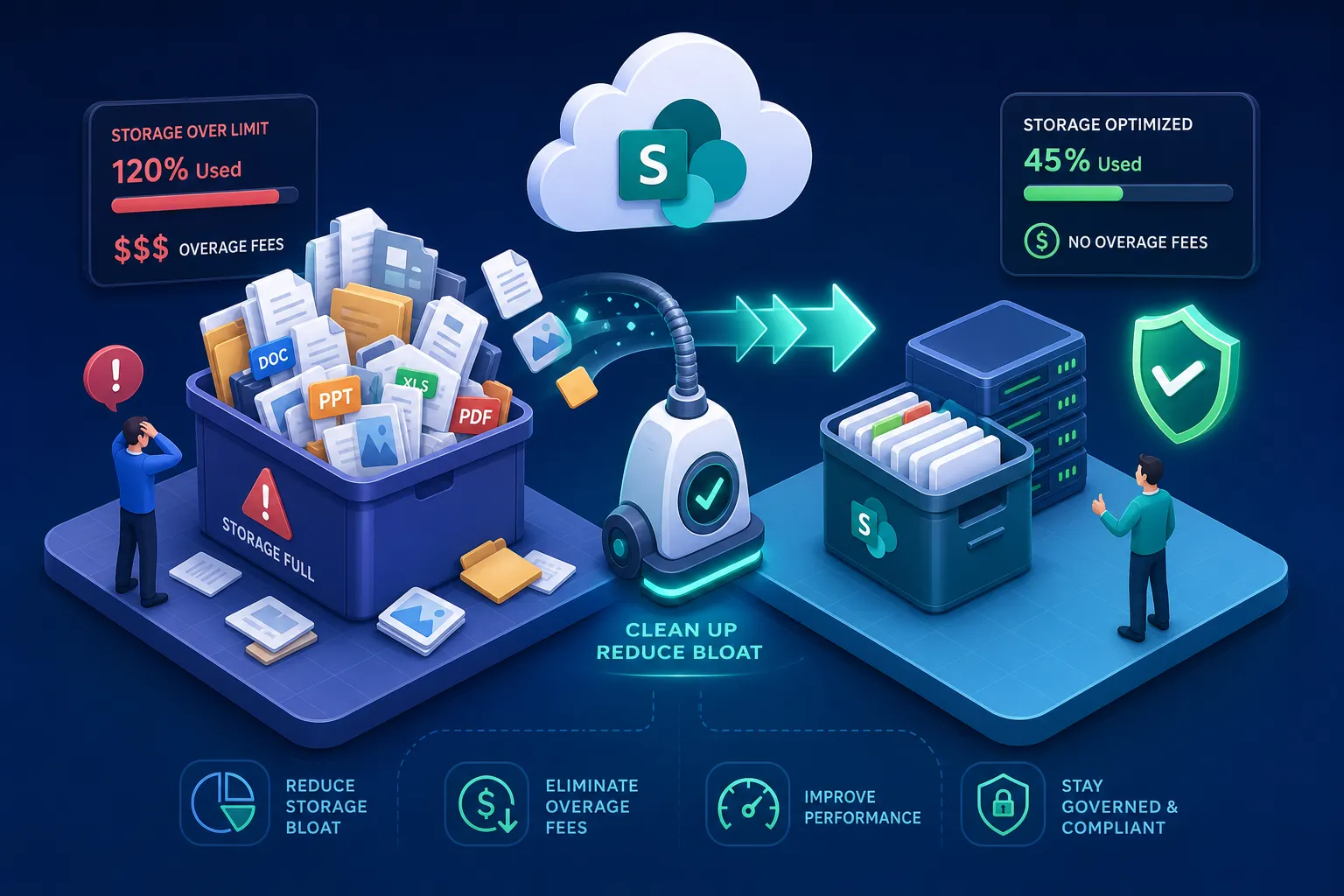
To reduce SharePoint storage overages, start with a clear picture of where the waste actually lives. One month your tenant is running fine; the next there’s a surprise line item on the Microsoft invoice that nobody budgeted for. The culprit is almost never a single massive upload. It’s months, sometimes years, of unchecked version history, forgotten recycle bin contents, duplicate files, and inactive sites that outlived their purpose.
Microsoft charges $0.20 per GB per month for additional SharePoint Online storage once your tenant’s base quota is exhausted. For context, a Microsoft 365 E3 tenant starts with 1 TB plus 10 GB per licensed user. For a 300-seat organization, that’s roughly 4 TB of pooled storage. It sounds like a lot until version history has silently consumed 30 to 70 percent of it, exactly what happens in unmanaged environments. At enterprise scale, that translates to $2,400 per TB per year in unnecessary spend.
Before you purchase more storage, work through the cleanup and governance steps below. Many organizations reclaim enough space in a single audit cycle to materially reduce or eliminate overages entirely.
How to see where your SharePoint storage is actually going
Cleanup without visibility is guesswork. The right starting point is an accurate picture of storage consumption across the entire tenant, then drilling down to the sites that are consuming the most quota.
Reading the tenant-wide storage report in Admin Center
In the SharePoint Admin Center, navigate to Sites > Active Sites. The upper-right corner shows your total and available tenant storage. Sort the Storage used (GB) column from largest to smallest to immediately identify which site collections are the biggest consumers. For admins who prefer scripting, Get-SPOSite -Limit All | Select Url, StorageUsageCurrent, StorageQuota returns the same data in MB for every site collection in the tenant.
Drilling into site-level detail with Storage Metrics
Once you know which sites are the biggest offenders, go inside them. Navigate to Site Settings > Storage Metrics to see a breakdown by document library, list, and folder. This view tells you whether the problem is a bloated version history in one library, a forgotten archive folder, or files that should have been deleted two years ago. PowerShell’s Get-SPOSite gives you the total per site; Storage Metrics gives you the granular breakdown that actually drives cleanup decisions.
How to reduce SharePoint storage: tackle version history first
Most admins know SharePoint tracks version history. Very few realize how aggressively it compounds when left unchecked. In unmanaged environments, version history routinely consumes 30 to 70 percent of SharePoint storage quota, a range Microsoft’s own documentation acknowledges.
Why the default 500-version limit is a storage trap
SharePoint retains the full file size for every version stored. A 10 MB PowerPoint with 50 versions consumes 500 MB against your quota. Multiply that across a document library with hundreds of co-authored files, and the footprint becomes enormous fast. The default cap of 500 major versions with no expiration means this accumulation continues silently for years until someone checks the storage report and wonders why the tenant is almost full.
Setting version limits that match how teams actually work
Not every library needs 500 versions. A practical framework by library type: 10 to 20 versions for working or scratch files, 50 for general business content, and 500 for legal or financial records where full audit trails are a compliance requirement. Microsoft’s Automatic mode, available in SharePoint Admin Center > Settings > Version history limits, is a low-configuration option that retains all versions from the last 30 days and progressively reduces older ones. For most organizations, this single setting change prevents future bloat from reaccumulating.
Trim versions to reduce SharePoint storage on existing content
To apply trimming to existing content, use PowerShell: New-SPOSiteFileVersionBatchDeleteJob -Identity $siteUrl -Automatic queues a trim job at the site level based on the automatic policy. This is important: deleted versions bypass the recycle bin entirely and cannot be recovered. Target libraries by type before running the command, and always confirm that legal or compliance libraries are excluded or set to their own retention threshold.
Quick cleanup wins that free up SharePoint storage today
After version history, two more cleanup actions deliver immediate results. For a single site or a small number of sites, both can often be completed in under an hour; at tenant scale they take longer. Either way, they reclaim storage that is sitting completely idle.
Clearing first- and second-stage recycle bins
Both recycle bin stages count against site storage quota. Many tenants accumulate gigabytes in recycle bins depending on usage patterns and how long deleted items have been left untouched. The UI path is Recycle Bin > Empty recycle bin for the first stage, followed by the Second-stage recycle bin link for the second. Via PnP PowerShell, Clear-PnPRecycleBinItem -All -Force handles both stages in a single command. The space reclaimed equals exactly the total size of deleted items: no overhead, no surprises. Note that SharePoint retains deleted items for 93 days total across both stages, so the second-stage bin often contains items users have long since forgotten about.
Finding and removing oversized files with PnP PowerShell
Use Get-PnPListItem filtered by the SMTotalFileStreamSize property to identify files above a set threshold across all document libraries. A common starting threshold is 250 MB, which surfaces video files, large CAD exports, and archived zip bundles that have no business sitting in an active document library. Export the results to CSV, review them with a human set of eyes, then use Remove-PnPListItem or Move-PnPListItem to act. Review before deletion is non-negotiable: the workflow is discover, confirm, remove.
Archiving inactive content without breaking compliance
Not all large content should be deleted. Sites tied to finished projects, closed teams, or retired business units often contain data that must be retained for compliance reasons but has no reason to sit in active storage at $0.20 per GB per month.
Microsoft 365 Archive for whole-site inactivity
Microsoft 365 Archive is the most cost-effective native option for inactive sites. At approximately $0.05 per GB per month compared to $0.20 per GB for standard overage storage, it delivers up to a 75 percent cost reduction on cold data. The archived site remains searchable, stays eDiscovery-compliant, and retains its full permission structure; it simply disappears from active navigation. Two things to know before committing: reactivation carries a per-action fee, so this option works best for sites with genuinely low reactivation frequency. Additionally, trim version history on high-version-count sites before archiving, Microsoft’s guidance on sequencing recommends reducing version overhead prior to committing to archive pricing, so you avoid paying archive rates on content that could have been reduced first.
Cost and compliance trade-offs to understand before you commit
Azure Blob storage via third-party tools is an option for granular file-level archiving within active sites. The storage cost is lower, but the complexity around permissions, data residency, and audit trails is significantly higher. Manual export to local or offline storage carries zero ongoing cloud cost but breaks searchability, severs audit trails, and disconnects the content from any Copilot integration. For most mid-market organizations, Microsoft 365 Archive handles the primary use case cleanly; the other options are edge cases with meaningful operational trade-offs.
What automated audits find that manual work misses
Running through version trimming, recycle bin cleanup, large file discovery, and archival decisions is highly effective work. It’s also a weeks-long project when spread across dozens of site collections in a real tenant. This process can be time-consuming for many IT teams, and tracking which libraries have never had a version policy applied adds another layer of sustained admin attention on a recurring basis.
This is exactly the problem that Chronom AI addresses. The platform performs a complete SharePoint storage audit automatically, mapping consumption across every site collection without manual script execution or Admin Center navigation. It identifies which sites are approaching quota, which libraries have never had version limits set, and where the highest dollar-per-GB waste is concentrated. Those findings arrive as a prioritized action list, not raw data that still requires interpretation.
Chronom AI’s storage audit goes beyond raw usage numbers. It flags redundant data hotspots, quantifies the exact storage savings available from each cleanup action, and surfaces insights across M365 licensing, Azure compute, and Marketplace commitments in a single audit. Organizations avoid the guesswork of figuring out which site to tackle first. The audit runs with read-only access, which eliminates the access-approval delay common in enterprise IT reviews.
Reduce SharePoint storage costs with governance that sticks
Cleanup without governance is a one-time fix. Within twelve months, the same patterns return: version histories stack back up, recycle bins refill, and new inactive sites accumulate with no one assigned to manage them. The final step is structuring the environment so future bloat is harder to accumulate in the first place.
Setting tenant-level version policies and site quotas
Configure the Automatic version history limit at the tenant level in the SharePoint Admin Center so every new document library inherits a sensible default without requiring library-by-library configuration. For sites with specific compliance requirements, use manual count-plus-expiration settings that match the actual retention schedule. Apply individual storage quotas to high-risk sites, such as large project libraries or external collaboration hubs, so that approaching the limit triggers an Admin Center alert before it triggers an overage charge.
Building a reporting cadence that keeps overages off the table
A quarterly storage review using the Admin Center’s Active Sites report, sorted by storage used descending, catches problem sites before they cross the overage threshold. Pair that with PowerShell exports or Chronom AI’s ongoing monitoring to flag sites crossing 80 percent of their quota automatically.
Prevention is always cheaper than cleanup. The organizations that never see SharePoint overage charges aren’t doing more work; they’re doing the right work on a consistent schedule.
Start with visibility, not more storage
SharePoint storage overages are rarely caused by one bad actor. They’re the result of default settings that no one ever changed, version history that accumulated silently, recycle bins that were never cleared, and inactive sites that were simply forgotten. Each of those problems has a direct fix, and the cleanup sequence covered here is designed to attack the highest-impact areas first before closing with governance that prevents the cycle from repeating.
For organizations managing dozens of site collections, doing this manually is feasible once. Doing it continuously is a different challenge. That’s where a platform like Chronom AI changes the economics: a single read-only audit surfaces every storage inefficiency across the full Microsoft environment, quantifies the savings in specific dollar terms, and hands teams a prioritized action list instead of a blank PowerShell prompt. Reducing SharePoint storage costs starts with knowing exactly where the waste is hiding.