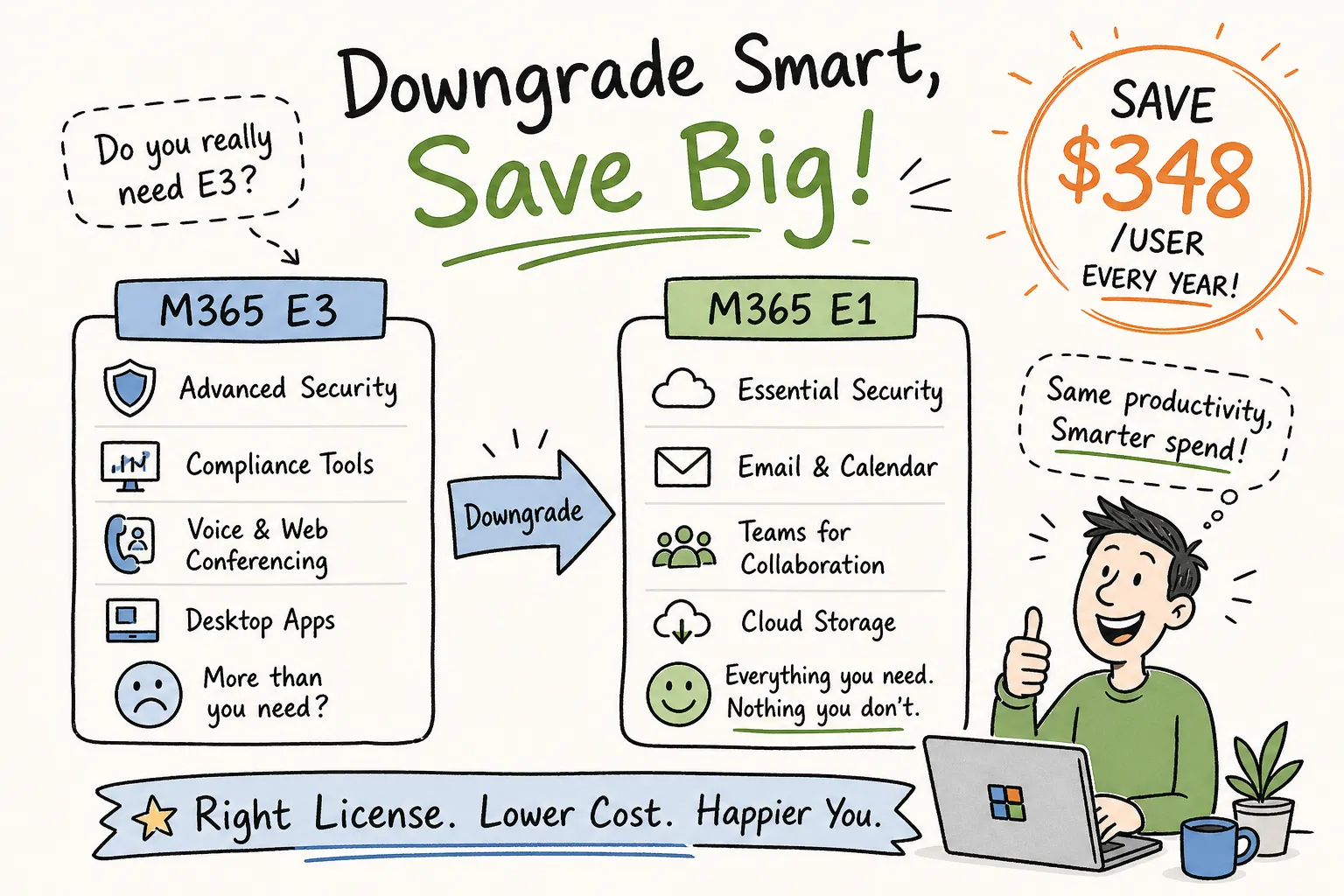
When should a company downgrade from E3 to E1 to save money? The answer starts with one overlooked reality: six months after a round of layoffs, most IT teams have updated the org chart and closed the offboarding tickets, but haven’t touched the Microsoft 365 licensing. Users whose daily work stays inside email, chat, and shared documents are still sitting on E3 at $39 per user per month when E1 at $10 would cover every workflow they actually use. That $29-per-user gap compounds fast, and it compounds quietly.
This article gives IT and finance leaders a concrete decision framework for the E3-to-E1 downgrade question. You’ll learn exactly which signals indicate E3 is overkill for a segment of your user base, what features disappear the moment you reassign the license, how to run the math with current 2026 pricing, and how to execute the downgrade safely without losing a single email. Chronom AI can surface eligible users across an entire tenant automatically, without the weeks of manual log analysis most teams dread, but the framework below works regardless of where you start.
When Should a Company Downgrade from E3 to E1: Key Signals
The presence of an E3 license does not mean the value of E3 is being realized. The clearest signal that a user segment is overpaying is consistent non-use of the features that justify the price gap: Teams Phone, webinar hosting, desktop Office applications, eDiscovery tools, and advanced device management. If usage telemetry shows zero or near-zero activity on these capabilities over a 90-day window, the standard lookback period for enterprise license audits, those users are strong downgrade candidates.
Role function matters as much as feature usage. E3 includes in-place hold, basic retention policies, and Azure Information Protection. These capabilities are genuinely necessary for legal, HR, finance, and executive roles subject to regulatory oversight. But for field coordinators, light sales support, or external-facing service staff, these tools go completely untouched. If a user’s job function carries no regulatory data custody requirement, the organization is paying for a compliance stack the user will never open.
Post-layoff and post-merger environments are where the most obvious seat bloat accumulates. A company that reduces staff by 15% rarely adjusts licenses at the same speed, or at all. That gap between seats purchased and seats actively needed is pure waste. It’s also one of the most predictable patterns in any M365 license audit: the headcount changed, the licensing didn’t. No one owns the reconciliation task.
What E1 Actually Removes, and What Stays Intact
When a user moves from E3 to E1, the desktop versions of Word, Excel, PowerPoint, and Outlook disappear immediately. Users are left with web and mobile apps only. Intune for device and app management is removed. Azure AD Premium P1 features, conditional access, self-service password reset, advanced MFA policies, go away as well. Mailbox storage drops from 100 GB to 50 GB, and the unlimited auto-expanding archive option is no longer available.
The security and compliance tools that disappear deserve explicit attention. Data Loss Prevention policies, Microsoft Defender for Office 365 (where bundled within your commercial plan rather than licensed as a standalone add-on), and Azure Information Protection Plan 1 are E3 inclusions that E1 does not carry. Verify your specific agreement, as some Defender and DLP capabilities ship as separate SKUs depending on your commercial tier. For any user touching sensitive or regulated data, these aren’t optional features, they’re foundational controls. Losing them creates compliance exposure that could cost far more than the license savings you generate, particularly in healthcare, financial services, or any organization subject to SEC, FINRA, or HIPAA oversight.
E1 is not a stripped-down husk, though. It includes core Exchange Online with a 50 GB mailbox, full Teams functionality for chat and meetings, SharePoint and OneDrive access, web and mobile Office apps, and standard MFA. For a significant portion of enterprise user populations, people whose daily work stays inside email, shared documents, and Teams chat, that’s genuinely sufficient. The decision hinges entirely on whether the user you’re downgrading actually needs what you’re removing.
The Savings Scenario: 200 Users, One Deliberate Decision
At $39 per month for M365 E3 and $10 per month for Office 365 E1, the per-user savings sits at exactly $29 per month, or $348 per user annually. Downgrade 200 users and that translates to $5,800 per month and $69,600 per year in recovered licensing spend. For organizations with 500 or more seats where a meaningful portion of users are light consumers, the figure scales into six figures without a single infrastructure change.
Not every downgrade delivers the full $29 in net savings, and the analysis needs to be honest before it goes to leadership. If downgraded users require a standalone MDM solution to replace the Intune functionality they lost, that cost gets added back. Organizations in regulated industries may need to layer on third-party compliance or archiving tools, products like JumpCloud or Mimecast typically run $5 to $15 per user per month, depending on scope. The gross savings figure is compelling; the net figure is what holds up to scrutiny in a board meeting.
In structured license audits, 20 to 35 percent of seats at mid-to-large enterprises typically qualify for E1 downgrade, particularly in frontline, retail, and administrative roles. Running a usage analysis across your tenant before the next Enterprise Agreement renewal gives you the data to validate that estimate against your actual environment, not industry averages.
Who Should Never Be Moved to E1, Regardless of Usage Data
Anyone in legal, HR, finance, or executive leadership at a company subject to regulatory oversight needs the eDiscovery and retention capabilities that E3 or higher provides. Downgrading these users and then facing a litigation hold request creates an incident that dwarfs any licensing savings. Federal Rule of Civil Procedure 37(e) sanctions for failure to preserve electronically stored information are not a hypothetical risk; they include adverse inference instructions and, in severe cases, default judgments.
Knowledge workers who spend their day inside Excel, PowerPoint, and desktop Outlook cannot function on web-only Office apps. Downgrading these users triggers immediate productivity friction and workaround requests. Support ticket volume commonly rises, shadow IT workarounds emerge, and the real cost of the downgrade becomes visible fast. The $29-per-user monthly saving evaporates when you factor in help desk time and user productivity loss.
Your IT team and security operations staff specifically need the Azure AD P1 features that E3 provides: conditional access policies, identity protection, and advanced MFA controls. Removing those capabilities from the people responsible for enforcing them creates a security posture gap that should disqualify them from downgrade consideration entirely. These users are the guardrail of your tenant; their licensing is not the place to optimize.
How to Execute the Downgrade Without Losing a Single Email or File
Protect Mailboxes First
The shared mailbox protection step is one that teams frequently skip, and it’s the step most likely to cause permanent data loss. Before removing an E3 license that includes Exchange, convert the user’s mailbox to a Shared Mailbox. This keeps the mailbox accessible without consuming a license and prevents the 30-day soft-delete clock from starting (per Microsoft’s Exchange Online data retention policy). Once the new E1 license is assigned and Exchange access is restored, convert the mailbox back to a user mailbox. One important caveat: shared mailboxes have a 50 GB size limit, so check mailbox size before conversion and back up any oversized mailbox first. Removing the license before assigning the replacement is how organizations lose email data they can’t recover.
Reassign Licenses in Admin Center
The reassignment process itself is straightforward inside Microsoft 365 Admin Center. Navigate to Users, then Active Users, select the target user, open the Licenses and Apps panel, uncheck E3, check E1, and save. The change takes effect immediately. For bulk changes, consider using PowerShell’s Set-MsolUserLicense as a single atomic operation to avoid transient unlicensed states. Users lose access to removed features the moment you save, so communicate the change in advance. Help desk teams need to know what’s coming before the support calls start.
Align Changes to Your Renewal Window
Microsoft does not prorate mid-term subscription changes. If your E3 commitment runs through Q4, downgrading individual users mid-cycle means you’re still paying for those E3 seats until the renewal date. Plan your downgrade execution in alignment with your subscription renewal window to capture the full annual savings. Document which users were changed and when, both for budget reconciliation and for audit defensibility if questions arise later.
How to Downgrade from E3 to E1 to Save Money: Finding E1-Eligible Users Without Weeks of Spreadsheet Work
Pulling usage telemetry for each user across Teams, Exchange, OneDrive, Intune, and Azure AD, then cross-referencing role and compliance obligations, is not a quick project. For a 500-seat organization, doing this manually across multiple admin portals takes weeks. The output is usually a static spreadsheet that’s already outdated by the time it reaches the person who needs to act on it.
Chronom AI’s M365 license optimization engine automates exactly this analysis. It reads usage data across the full Microsoft tenant, flags users on E3 who show consistent E1-level consumption patterns, and surfaces a prioritized downgrade list with estimated monthly and annual savings. The audit completes in minutes rather than weeks. It runs on read-only access with no disruption to the live environment, which means no security review friction before IT can see the data. Chronom AI is designed to meet SOC 2 compliance requirements, confirm current certification status directly with the Chronom AI team during your evaluation.
The value of the AI-generated report isn’t just speed, it’s specificity. Instead of presenting leadership with an estimate based on industry benchmarks, you’re presenting a user-level breakdown of who qualifies, how much each downgrade saves, and what the total 12-month impact looks like. That’s the kind of dollar-quantified analysis that gets approved in the first meeting rather than the third. Running a Chronom AI audit before your next EA renewal gives you the data to negotiate from a position of actual knowledge, not assumption.
The Decision Is User-Level, Not Org-Wide
The question of when a company should downgrade from E3 to E1 to save money never has a single org-wide answer. It’s a user-level decision driven by real usage patterns, role obligations, and compliance requirements specific to each person in your tenant. The organizations that recover the most licensing spend treat this as a structured analysis rather than a policy sweep.
For organizations with even modest populations of light users, the math at $29 per user per month compels the analysis. At 200 users, you’re looking at nearly $70,000 per year. The process itself is safe and predictable when executed in the right order. The harder part is identifying who qualifies accurately and quickly across a tenant with hundreds or thousands of seats, without spending weeks pulling reports that go stale before they’re used.
If your organization hasn’t run a structured M365 license audit in the past 12 months, or if your last renewal cycle came and went without a proper usage review, a Chronom AI audit is the logical first step. The data exists in your tenant right now. The only question is whether you surface it before your next renewal, or after.